Recording Interpretation (CNVs)
Disclaimer
The clinical interpretation of referrals and variants should follow your local best practice guidelines.
There are a number of features designed to aid in case and variant interpretation, and tracking those interpretations. CNV interpretation can be performed on the variant grid, using the classification drawer. When the classify button is clicked, the row in the grid for the corresponding variant is highlighted in blue, and the variant coordinates are indicated at the top of the classification drawer that opens. The drawer provides the ability for variants to be commented on, classified and a contribution to phenotype and validation requirement / outcome selected. A history of any comments and classification can be seen in the History panel below the classification panel, along with information on who provided the interpretation and when.
Any variant with an interpretation history, which has not been added to the report, will be visible by default in the Other reviewed variants table on the reporting page.
Classification and Exclusion
A variant can be classified or excluded using the Classification drawer on the CNV grid.
It is recommended that once classification of a variant is complete, the tooltip is used to manually check and verify that the points and codes assigned, and the points total, are correct.
Variant comment
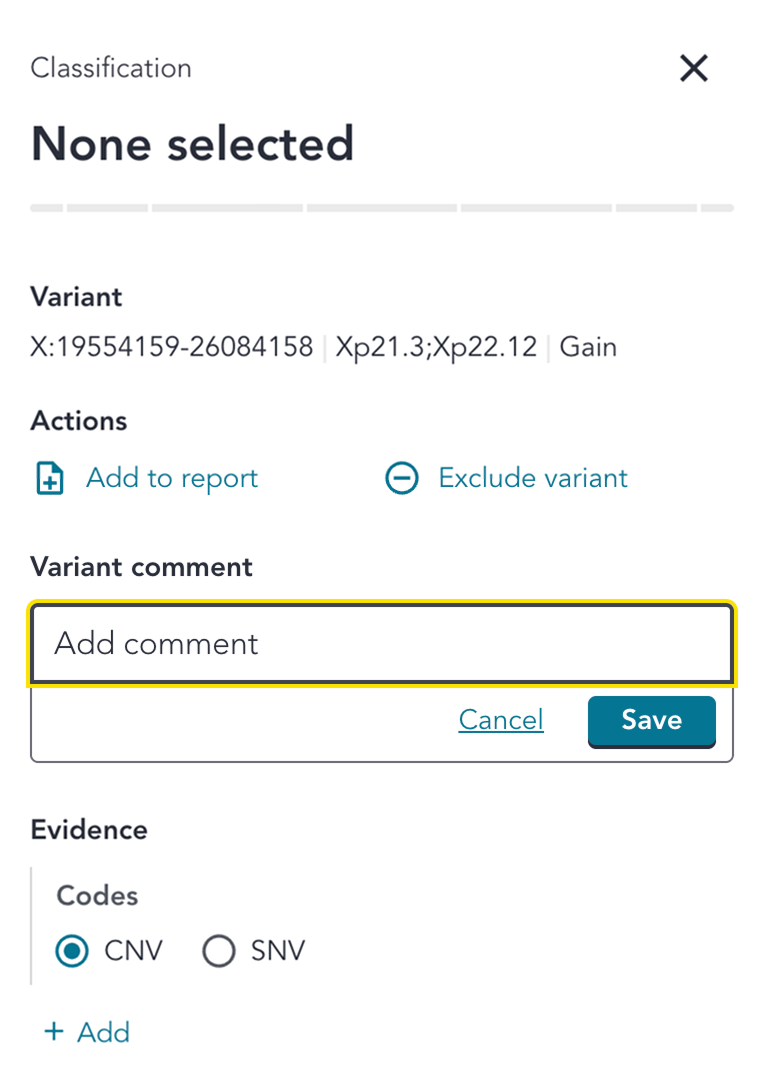
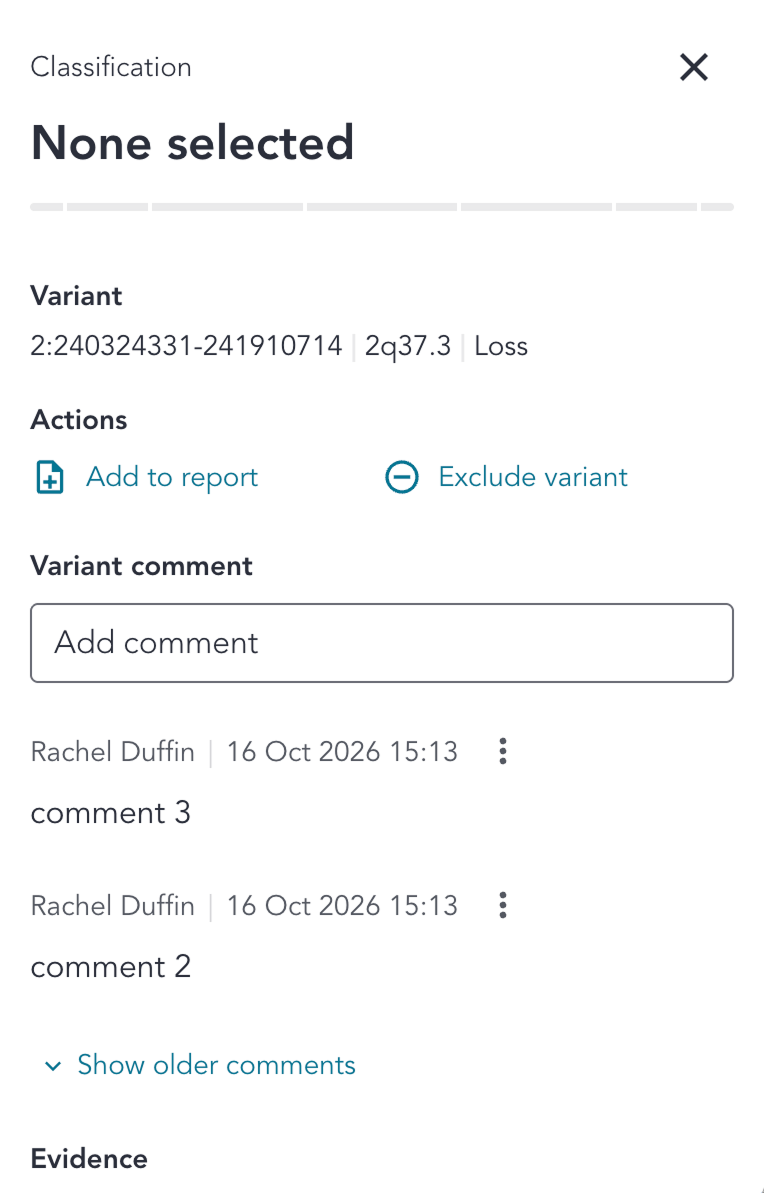
Comments can be added using the Variant comment box in the Classification pane. Multiple comments can be added to the same variant, and the comment box remains visible after each comment is saved, allowing additional comments to be added. Comments are displayed beneath the comment box, with the most recent comment at the top.
By default, the two most recent comments are displayed. Where more than two comments have been added, select Show older comments to view all previous comments. Select Hide older comments to return to the default view.
Clicking Cancel will prevent a comment from being saved. There is a maximum limit of 10,000 characters for comments. If you enter a URL, this will be recognised and loaded as a clickable hyperlink when saving the comment.
Comments can be edited or removed by the user who originally added them, by opening the menu next to their comment and selecting Edit or Remove. Users cannot edit or remove comments added by other users.
When a comment is edited, the updated text is displayed in its original position, retaining the original username and timestamp. An Edited label is displayed next to the comment to indicate that it has been modified.
When a comment is removed, it is no longer displayed in the Variant comment section.
All comments and subsequent edits or removals are recorded in the History panel, including the username, timestamp and comment content. Editing or removing a comment creates a new history entry while preserving the original record for audit-trail purposes. The History panel is read-only. See the history page for further details.
Comments on excluded variants
The Variant comment section remains available when a variant is excluded, allowing users to view existing comments and add new comments without changing the variant's exclusion status.
When a variant is excluded, the Variant comment section is displayed beneath Reasons for excluding in the Classification pane. The same functionality for adding, viewing, editing and removing comments applies to both included and excluded variants.
Variant comments are optional when excluding a variant.
Exclusion
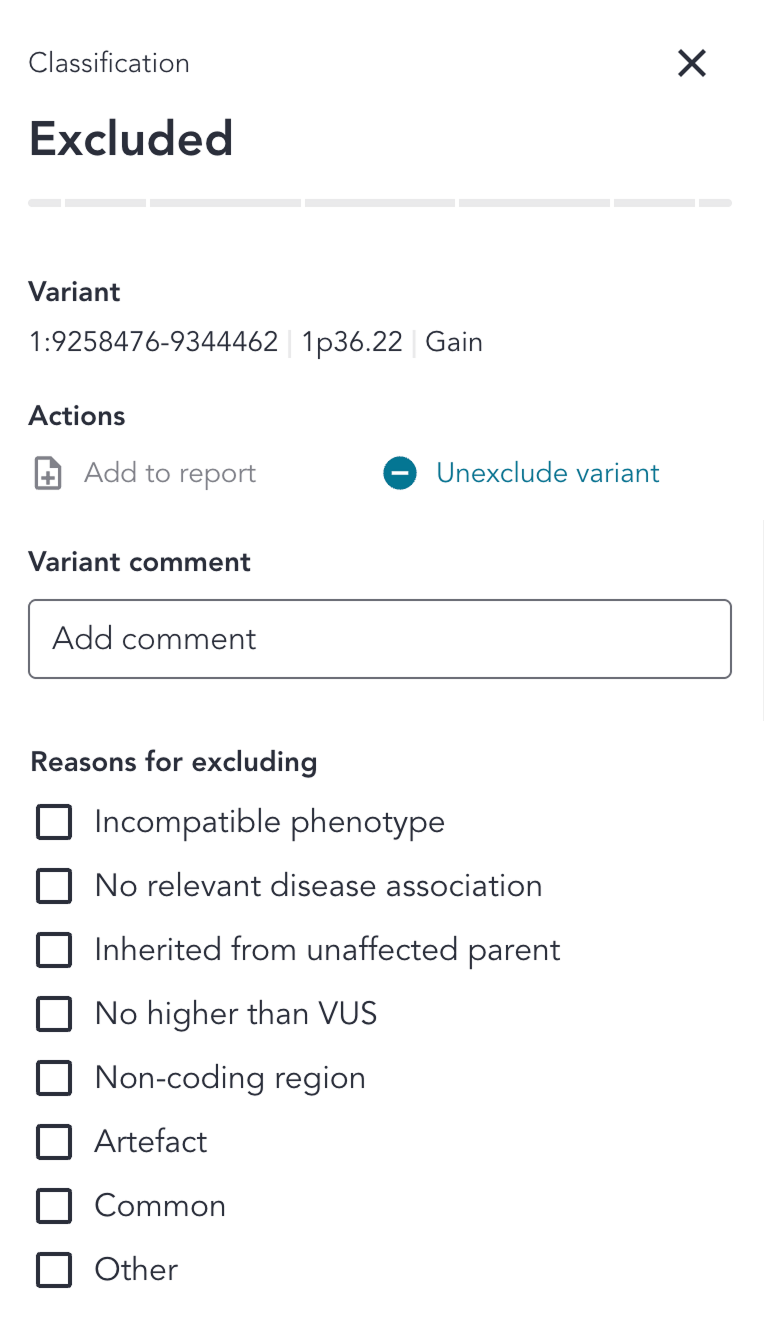
Excluded variants are variants that have been determined to not require any further interpretation or classification for a specific reason, such as being an artefact or being too common.
A variant can be excluded by clicking the Exclude variant button in the Classification pane. This will update the classification at the top of the card to Excluded, hide the fields for classifying the variant, and reveal a new field, to select one or multiple reasons for excluding the variant (an optional field). The Reasons for excluding selection options are: Incompatible phenotype, No relevant disease association, Inherited from unaffected parent, No higher than VUS, Non-coding region, Artefact, Common, and Other.
To unexclude the variant after exclusion, uncheck the checked Exclude variant box. This will set the classification drawer back to the default view.

Contribution to phenotype
A contribution to phenotype can also be added alongside the classification. The options provided are Full, Partial, None and Unknown.
Selections can be reset using the drop down menu and selecting Reset contribution to phenotype, and the drop down will then display Select.
Validation
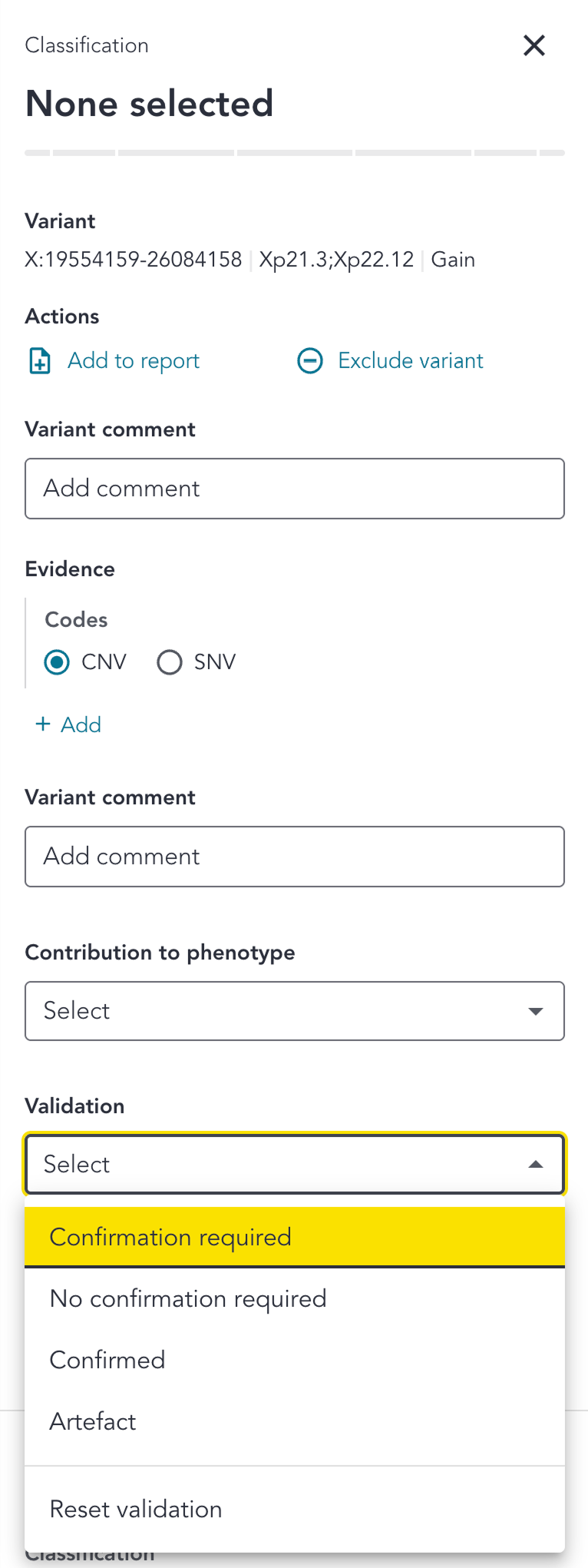
This drop down allows the user to record any validation requirements or validation results for the CNV. The options provided are Confirmation required, No confirmation required, Confirmed, and Artefact.
Selections can be reset using the drop down menu and selecting Reset validation, and the drop down will then display Select.
Classification
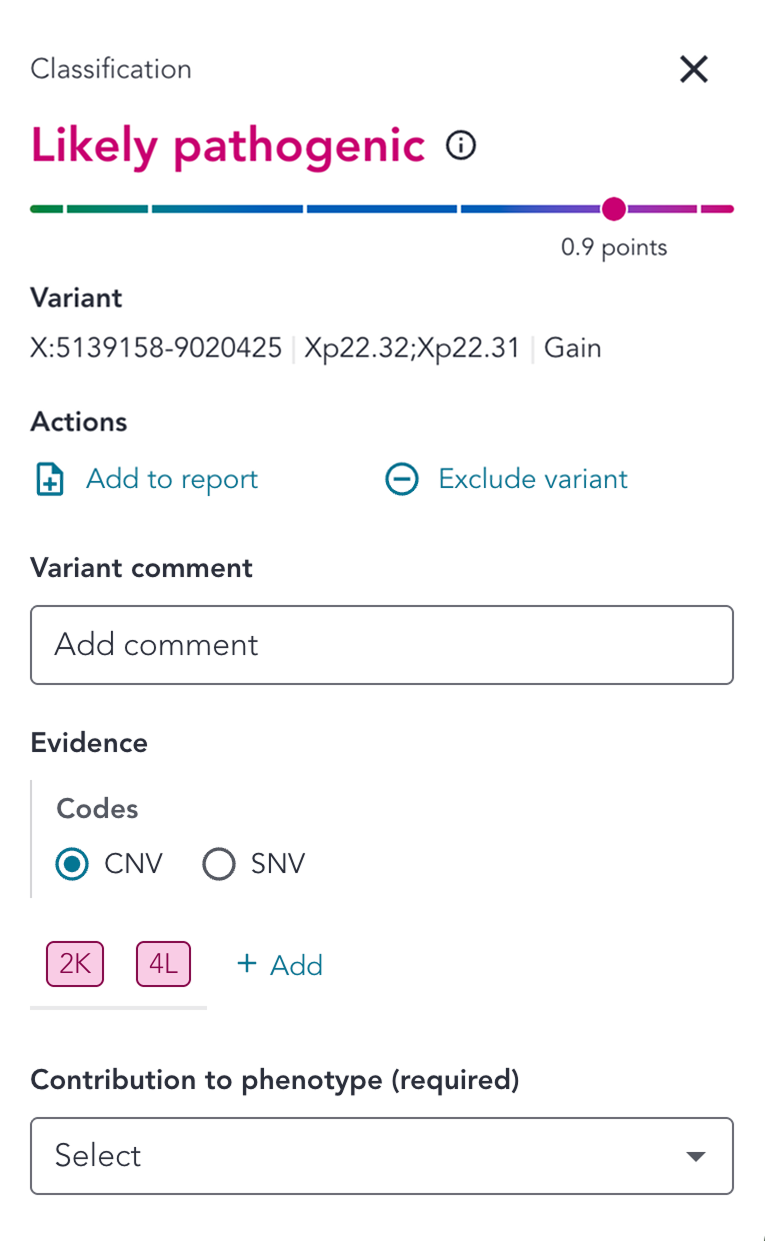
The classification is based on the ACMG/ClinGen technical standards for constitutional copy-number variants (2020) and the ACMG/AMP 2015 framework, as adapted and clarified in the ACGS Best Practice Guidelines for Variant Classification in Rare Disease (2024). The user can classify a variant as Benign, Likely benign, Uncertain significance, Likely pathogenic and Pathogenic. Alternatively, when ACMG criteria are added for the variant, the system will auto-calculate a classification based upon the points total from the added criteria. Headers are colour coded according to pathogenicity (Benign or Likely benign = green, Pathogenic or Likely pathogenic = pink, Uncertain significance = blue).
It is recommended that after adding ACMG criteria, the tooltip is used to manually check and verify that the points and codes assigned, and the points total, are correct.
Evidence code type
Select the evidence type—SNV ACMG evidence or CNV ACMG evidence—using the relevant radio button.
It is recommended that you select the evidence type before adding any evidence entries. If you switch evidence type after adding evidence, the classification will be recalculated using only the evidence entries associated with the newly selected type. Evidence added under the previous type will not be included in the classification calculation.
If evidence has already been added when the evidence type is changed, a warning banner will be displayed.
ACMG criteria
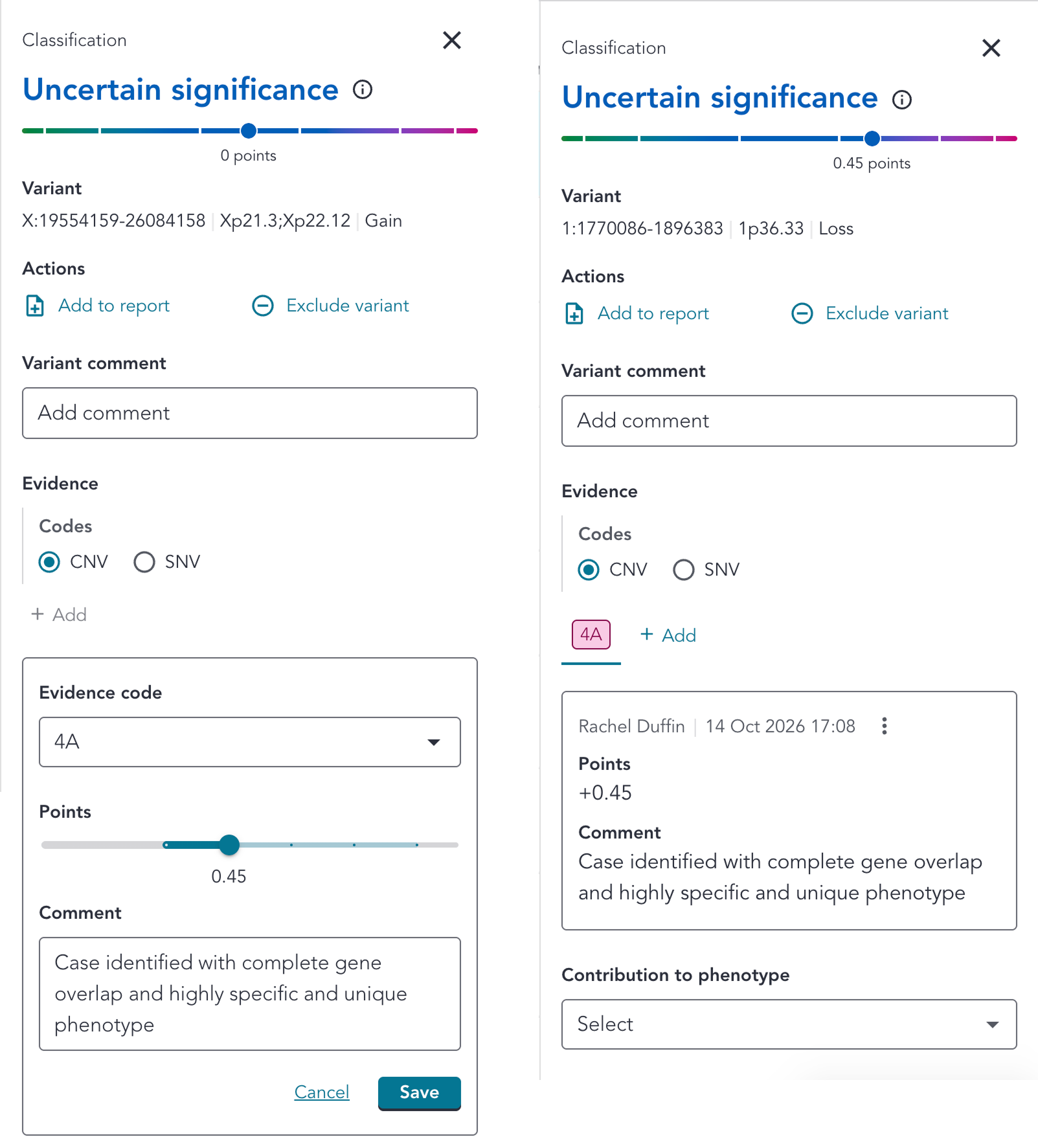
ACMG evidence can be added by selecting + Add in the classification drawer. This opens a panel where you can:
- Select an Evidence code
- Select the Strength
- Add an optional Comment
The Evidence code and Strength fields are mandatory, while the Comment field is optional.
You can type in the Evidence code field to narrow the drop-down list to the relevant code or codes. The system automatically populates the Evidence code drop-down with loss or gain codes according to the type of variant selected.
When an evidence code is selected, the system automatically assigns the default point value specified in the ACGS guidelines. For some evidence codes, this is the only permitted value and cannot be adjusted. For others, the assigned points can be changed using the points slider.
Important: The selectable point values per code are based on the 2024 ACGS guidelines. ACGS recommends using the default point values unless there is appropriate justification for upgrading or downgrading the evidence. Where adjustments are permitted, specific static point values are used, as specified in the ACGS guidelines, rather than arbitrary increments. The default increments and allowed step points per code were reviewed with GLHs prior to implementation.
Please ensure that any adjustments to the default evidence strength are clinically justified and consistent with the ACGS guidelines.
Once an evidence code has been added, it appears as a colour-coded tab beneath the Evidence header. Benign and likely benign evidence codes are displayed in green. Pathogenic and likely pathogenic evidence codes are displayed in pink. Select the tab to view the assigned strength and any associated comment.
Use the menu on the tab to edit or remove the evidence code:
- Edit: change the strength or comment, or replace the evidence code entirely.
- Remove: exclude the code from the variant’s classification evidence.
Removed evidence is no longer displayed in the user interface, but it remains available in the underlying systems and in the History for audit-trail purposes.
Cumulative scoring rule (4A 4B 4C)
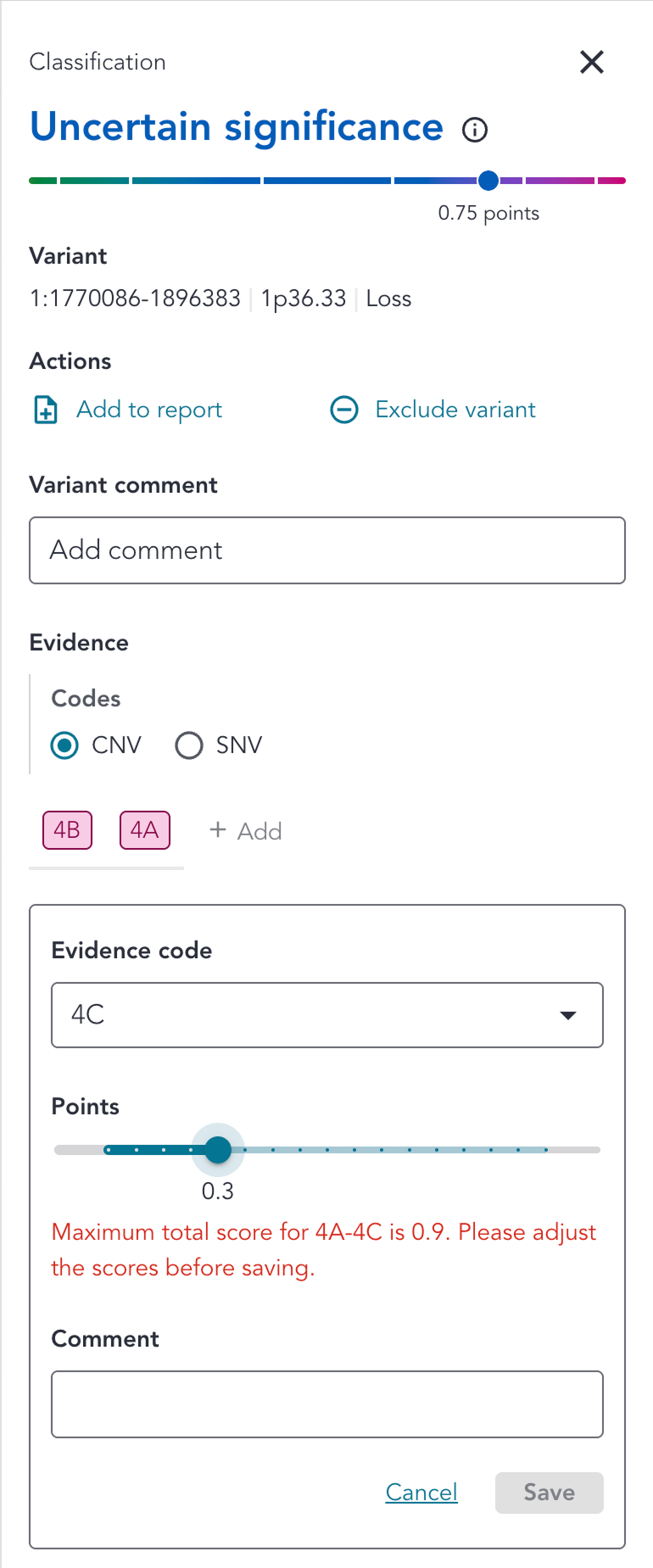
In accordance with ACMG/ClinGen CNV classification guidelines, the cumulative score for criteria 4A, 4B and 4C must not exceed 0.90. The system automatically enforces this limit by preventing users from saving scores that would exceed the maximum permitted total and displaying an error message prompting them to adjust their scores.
Auto-calculated classification
As ACMG evidence codes are added to a variant, the system will auto-select a classification in the classification drop-down (indicated by the (calculated) suffix in the drop-down and history log). Additionally, the bar underneath the classification header will become active and will display a points marker, points total, and colour to reflect the total points across the assigned ACMG codes for the variant.
If evidence codes are added or removed, the assigned classfication will be re-calculated and auto-selected accordingly by the system, with points total, points marker and slider updating to reflect the new points total. The auto-selected classification can be manually overridden if required, using the classification drop-down (see Manual classification section). Addition of ACMG codes will override any manual classification selection.
Points ranges for the auto-calculated classification are as follows (Riggs et al. (2020)):
| Classification | Points |
|---|---|
| Pathogenic | ≥0.99 |
| Likely pathogenic | 0.98 ≥ x ≥ 0.90 |
| Uncertain significance | 0.89 ≥ x ≥ -0.89 |
| Likely benign | -0.90 ≥ x ≥ 0.98 |
| Benign | ≤ -0.99 |
Classification tooltip
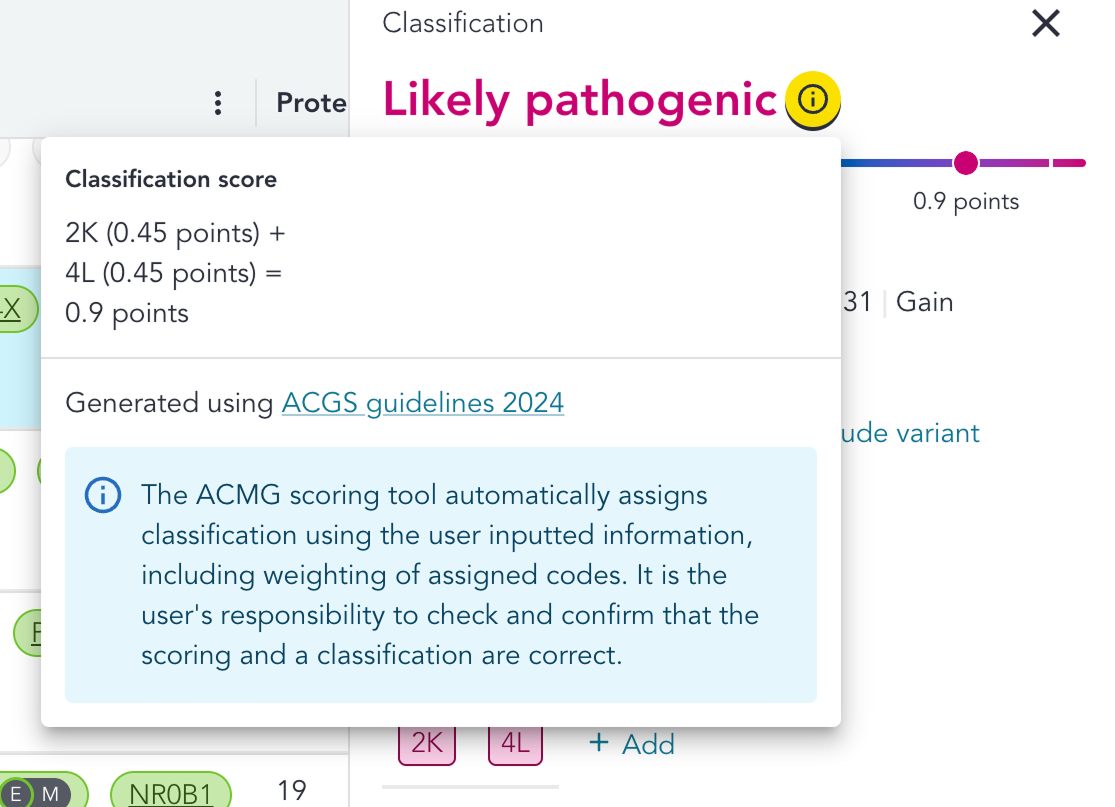
As ACMG codes are added, the points total can be verified by clicking the tooltip to the right of the classification at the top of the drawer. This will provide a break down of the scores attributed to each code, and the total score across all codes for the variant. It also provides a link-out to the ACGS guidelines (2024), where the codes and strengths were derived from.
The exceptions are:
- If a classification is selected manually, the tooltip will not be present as the classification has not been derived from the points total
Manual classification
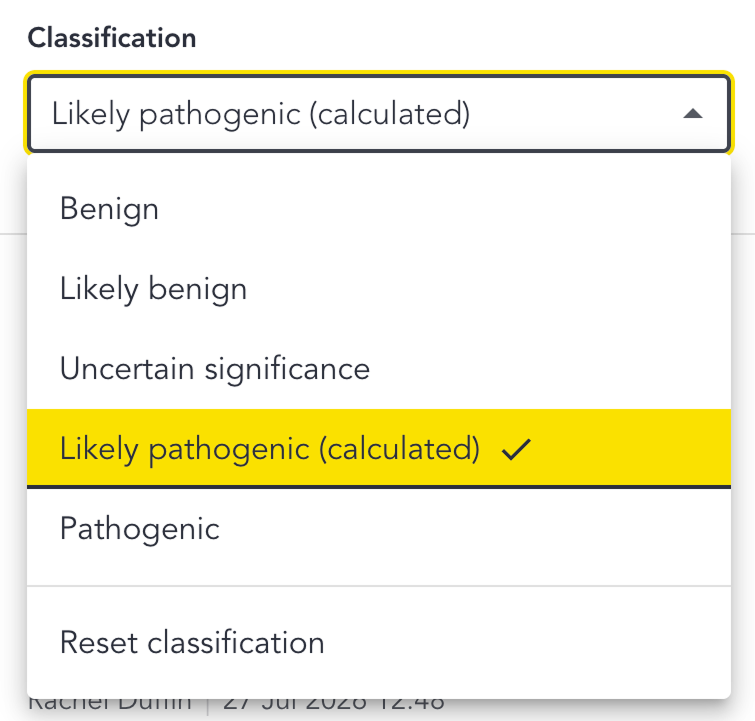
A classification can be selected manually using the classification drop-down. This can also be used to override any system-calculated classification. A record will be saved in the history log, in the same way as for all other user selections. Prior classification(s) will remain visible in the history log.
When an auto-calculated classification is overriden, the points tooltip will disappear, and the points slider will be greyed out with any points total no longer visible.
If further ACMG codes are then added, the classifcation will be re-calculated by the system, and the manual classification overridden.
Reset classification
The classification can be reset using the classification drop-down, by selecting Reset classification, which will set the field back to the default Select status, and set the classificaiton at the top of the card back to None Selected.
Add to report
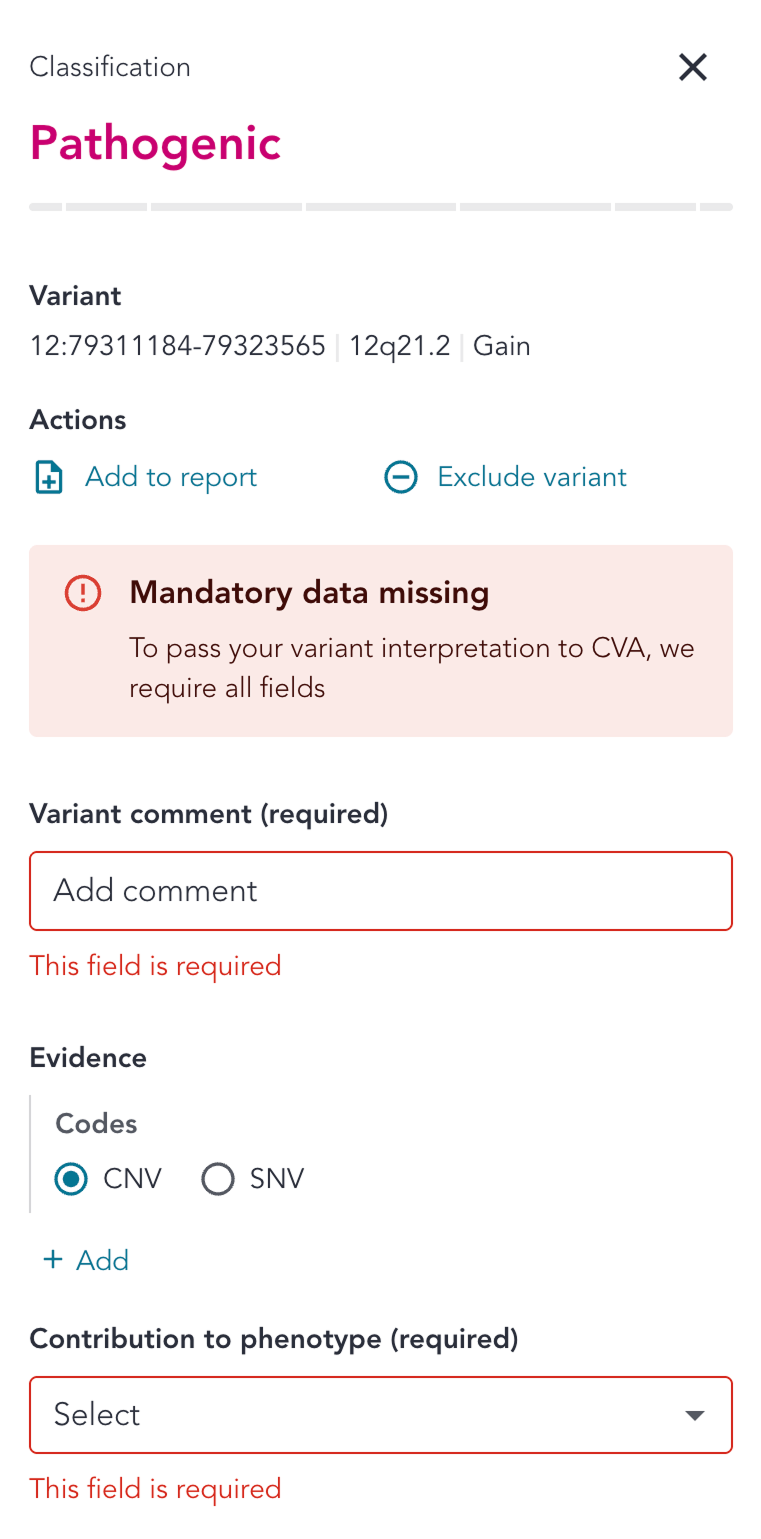
Variants can be added to the Variants to report table in the reporting page by clicking the Add to report button at the top of the classification drawer. Clicking the button again will then remove the variant from the report.
Pathogenic and Likely Pathogenic classifications
Variants with Pathogenic or Likely pathogenic classification selected can only be added to the report if the Variant comment and Contribution to phenotype fields have been completed. Any attempt to add the variant to the report by clicking the Add to report button without completing all fields will trigger an error message to indicate that those fields are required. Once those fields have been filled in, then the error messages will disappear and clicking the Add to report button will now successfully add the variant to the Variants to report table. The Add to report button will be replaced by a Remove from report button which can be used to remove the variant from the Variants to report table.
If the selection for any field is cleared after it has been added to the Variants to report table, then the variant will be automatically removed from the table and be moved into the Other reviewed variants table.
Unlike classified SNVs, classified CNVs are not passed to CVA.
All other classifications
Variants with any other classification types or without a classification selected can be added to the report by clicking the Add to report button, with no mandatory fields required.
Excluded variants
Excluded variants are added to the Excluded variants table by default.
Abbreviations
| Abbreviation | Definition |
|---|---|
| ACGS | Association for Clinical Genomic Science |
| ACMG | American College of Medical Genetics and Genomics |
| CDS | Coding DNA Sequence |
| CIP-API | Genomics England Clinical Interpretation API |
| CNV | Copy Number Variant |
| CVA | Clinical Variant Ark |
| EQ | Exit Questionnaire |
| RDDSS | Rare Disease Decision Support System |
| GEL | Genomics England |
| GMS | Genomic Medicine Service |
| GLH | Genomic Laboratory Hub |
| HGVS | Human Genome Variation Society |
| HTML | Hyper Text Markup Language |
| HSCN | Health and Social Care Network (N3) |
| IGV | Integrative Genomics Viewer |
| IB | Interpretation Browser |
| IP | Interpretation Portal |
| NGIS | National Genomics Informatics System |
| PID | Patient Identifiable Data |
| QC | Quality Control |
| SoF | Summary of Findings |
| SO | Sequence Ontology |
| SNV | Single Nucleotide Variant |
| SV | Structural Variant |
| TOMS | Test Order Management System |
| UAT | User Acceptance Testing |
| VCF | Variant Call Format File |
| VILs | Variant Interpretation Logs |
| WGS | Whole Genome Sequencing |