Reporting
The reporting page provides:
- Ability to add and view a case interpretation comment, and a full case comment history
- Indication of the number of variants still requiring interpretation
- Summary of variants - variants to report, reviewed variants, excluded variants
- Summary of patient, clinical and family information for the case
- Summary of the software and dataset versions used to process and interpret the case
Cases can be closed from this page (case status can also be updated using the header drop-down, see the closing a case page for more details).
Case interpretation

Here, overall case comments can be added, summarising your interpretation of the case (N.B. there is a 10,000 character limit per comment). Case comments are mandatory, as the information is collected to populate the Summary of Findings and CVA.
Multiple comments can be added to the same case, and the comment box remains visible after each comment is saved, allowing additional comments to be added. Comments are displayed beneath the comment box, with the most recent comment at the top. Each comment displays the username and timestamp of when it was added.
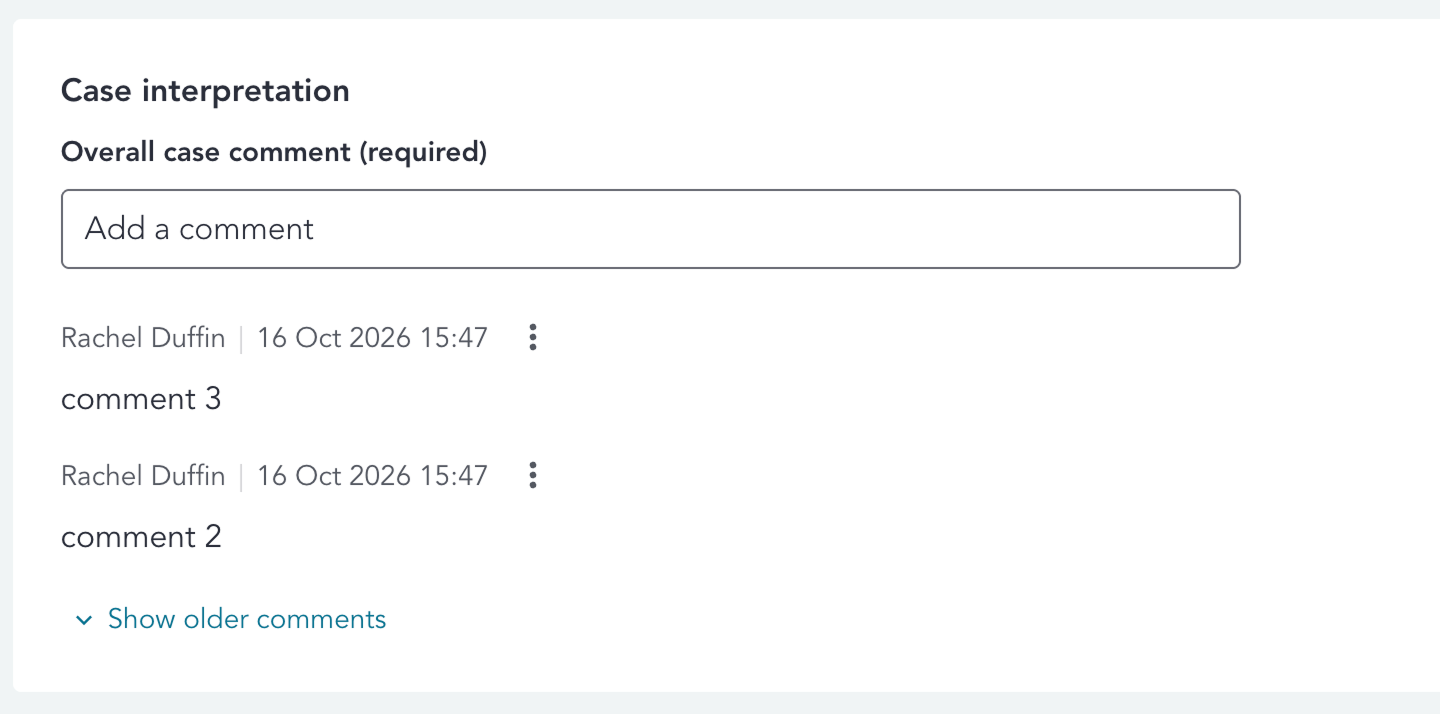
By default, the two most recent comments are displayed. Where more than two comments have been added, select Show older comments to view all previous comments. Select Hide older comments to return to the default view.
Comments can be edited or removed by the user who originally added them, by opening the menu next to their comment and selecting Edit or Remove. Users cannot edit or remove comments added by other users.
When a comment is edited, the updated text is displayed in its original position, retaining the original username and timestamp. An Edited label is displayed next to the comment to indicate that it has been modified.
When a comment is removed, it is no longer displayed in the Case interpretation section.
Attempting to close the case without a case comment(/s) will result in an error message. The case can only be closed once a comment has been added.
Case interpretation history
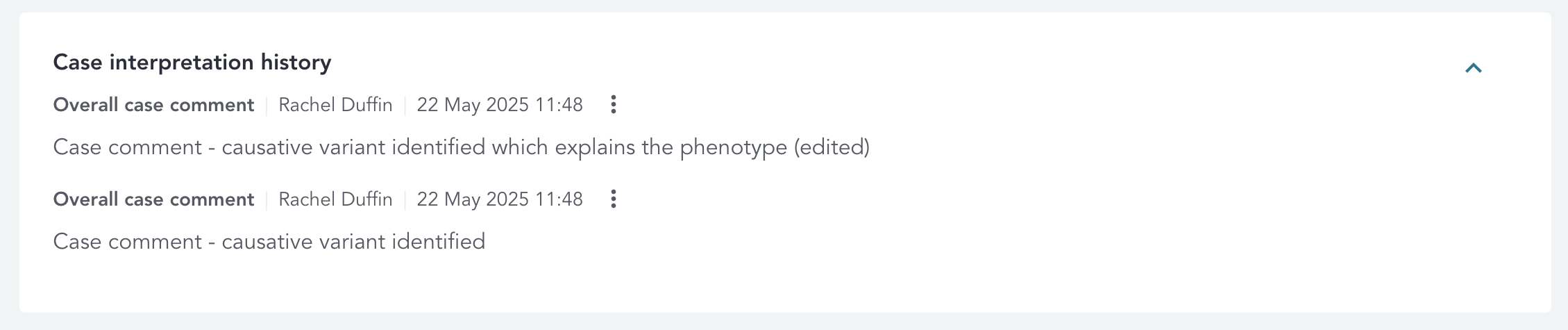
Here, the full history of case comments, including any edits or removals, is displayed. Each entry includes the username, timestamp and comment content, with the most recent activity at the top.
When a comment is edited, the original comment remains in the history and a new entry is added with the label Edited overall case comment, displaying the updated comment content and the timestamp of the edit.
When a comment is removed, the original comment remains in the history and a new entry is added with the label Removed overall case comment, displaying the original comment content and the timestamp of removal.
The Case interpretation history is read-only, and comments cannot be edited or removed from this section. This ensures that a complete audit trail of case comments and subsequent changes is maintained.
Variants requiring interpretation
This card keeps a count of the number of Tiered variants requiring interpretation. At the top is a count of the total number of Tiered variants requiring interpretation (Tier 1 and Tier 2 SNVs, CNVs, and STRs). A variant is classed as having been interpreted when it has been either excluded or had a classification value added.
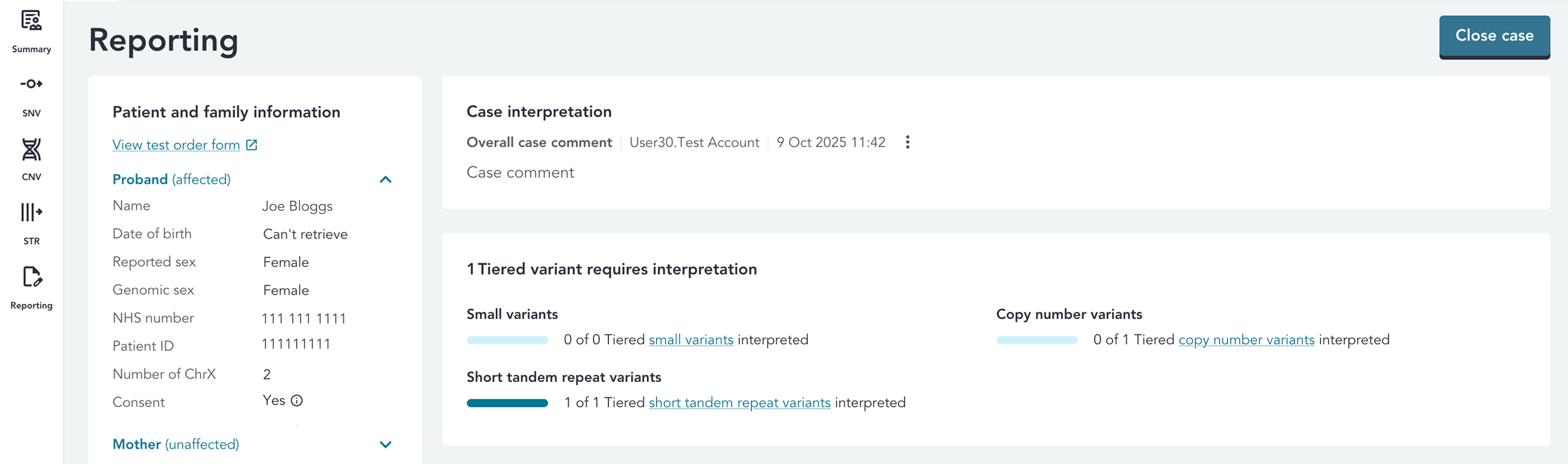
Once the bar for each variant type is filled, and the message All Tiered variants are interpreted is visible. This means that all Tiered variants requiring interpretation have been attended to.

Variant tables
This card displays tables for both SNVs, CNVs and STRs which have been either added to the report, excluded, or that have had selections made by the user. When the case is closed, all actions in the variant tables are disabled.
Variants to report
The Variants to report table contains any variant that has specifically been marked to add to the report. Adding a variant to the report means it will be included in the Summary of Findings, so should include all reportable variants.
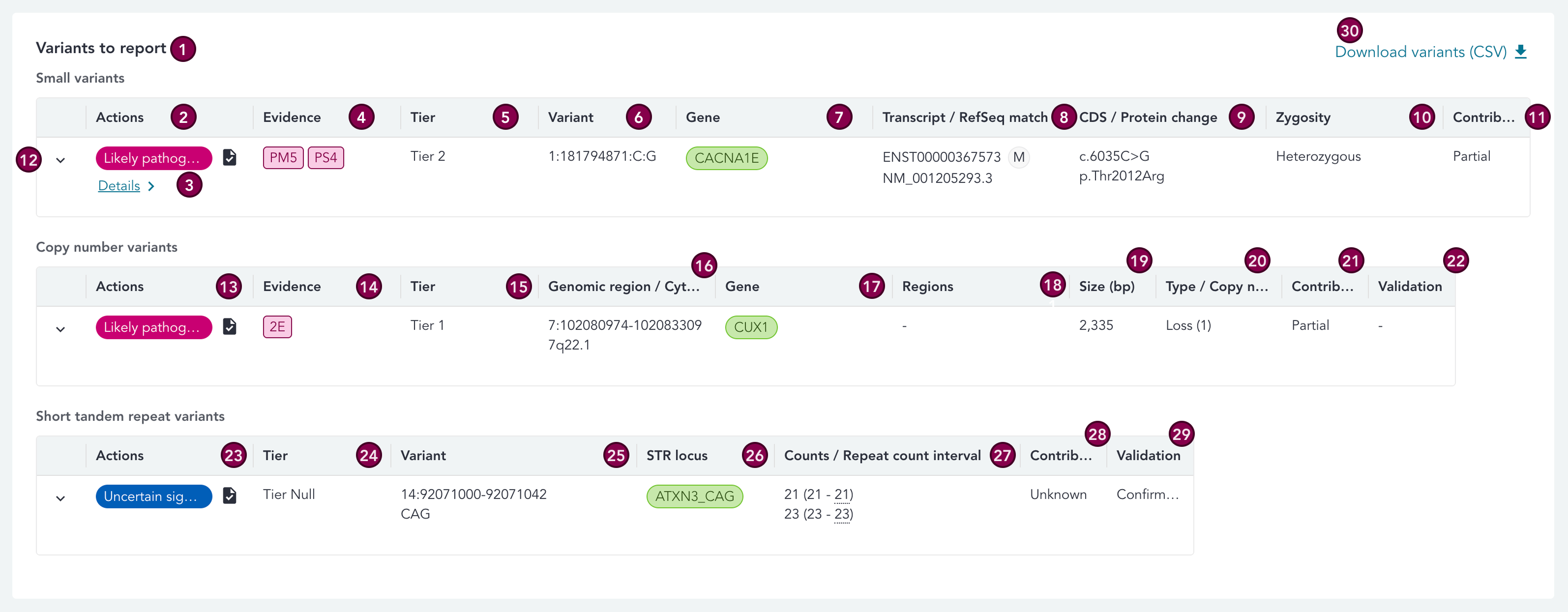
Key
| # | Section | Description |
|---|---|---|
| 1 | Variants to report | Displays all variants that have been added to the report. There are two tables in this section, one for SNVs and one for CNVs. |
| 2 | Actions (SNV) | Displays the classification for the SNV, and actions including Details (navigates to the variant details page for the variant), and a Remove from report button which moves the variant down into the Other reviewed variants table. When the case is closed, this button is disabled. |
| 3 | Classification (SNV) | Displays the classification selected by the user, Excluded if the variant has been excluded, or No classification* if no classification has been selected. |
| 4 | Evidence | ACMG evidence codes that were added during variant classification. |
| 5 | Tier (SNV) | This can be Tier 1, Tier 2, Tier 3, or "-" for untiered SNVs or SNVs that do not fall within a gene. |
| 6 | Variant (SNV) | The VCF format of the SNV. |
| 7 | Gene (SNV) | HGNC gene symbol for the gene associated with the selected transcript. If no transcript has been selected, then No transcript selected is displayed, to remind you that a transcript needs to be selected. The gene pill is coloured green when the gene is green in at least one PanelApp panel of the most recent version at the time of case ingestion. |
| 8 | Transcript / RefSeq match | Selected transcript for the classification. Ensembl ID is displayed, along with RefSeq match where the transcript selected is a MANE transcript. If no transcript has been selected, then No transcript selected is displayed. |
| 9 | CDS / Protein change (SNV) | Contains the c. and p. HGVS nomenclature for the selected transcript. If no transcript has been selected, then No transcript selected is displayed, to remind you that a transcript needs to be selected. If the transcript does not result in a CDS / Protein change, then '-' are displayed. |
| 10 | Zygosity (SNV) | Relationship between the alleles at the locus. |
| 11 | Contribution to phenotype (SNV) | The contribution to phenotype that has been selected for the SNV. The options for selection are Full, Partial, None, Unknown. If no option has been selected, then a '-' is displayed. |
| 12 | Variant drop-down | This can be expanded to display the latest selections for each input type from the interpretation history for the variant, plus all variant comments. In the Variants to report and Other reviewed variants tables this is the classification selection history. In the Excluded variants table this is the exclusion selection history. |
| 13 | Actions (CNV) | Displays the classification for the CNV. The Remove from report button moves the variant down into the Other reviewed variants table. When the case is closed, this button is disabled. |
| 14 | Evidence (CNV) | ACMG evidence codes that were added during variant classification. |
| 15 | Tier (CNV) | This can be Tier 1, Tier 2, Tier Null, or "-" for untiered CNVs or CNVs that do not fall within a gene. N.B. cases processed by the pipeline prior to the 4.3 RDDSS release will continue to display as Tier A / Tier B instead of Tier 1 / Tier 2. For further details, see the limitations page. |
| 16 | CNV Genomic region / Cytoband (CNV) | The genomic region and cytoband of the CNV. |
| 17 | Gene (CNV) | HGNC gene symbol for the gene associated with the CNV. We show the first affected gene (additional genes are indicated with a "+n" pill, with n being the number of genes). Green genes are always displayed first. |
| 18 | Regions (CNV) | PanelApp ISCA regions the CNV overlaps. The region pill is coloured green according to its PanelApp green gene status. |
| 19 | Size (bp) (CNV) | Length of the copy number variant in base pairs. |
| 20 | Type / Copy number (CNV) | The type of the copy number variant. Loss (deletion CNV) or Gain (duplication CNV). The copy number state is indicated by the number in brackets next to the type. |
| 21 | Contribution to phenotype (CNV) | The contribution to phenotype that has been selected for the CNV. If no option has been selected, then a '-' is displayed. |
| 22 | Validation (CNV) | Validation requirements / validation results for the CNV. |
| 23 | Actions (STR) | Displays the classification for the STR. The Remove from report button moves the variant down into the Other reviewed variants table. When the case is closed, this button is disabled. |
| 24 | Tier (STR) | This can be Tier 1, Tier 2, or Tier Null. |
| 25 | Variant (STR) | The VCF format of the variant. |
| 26 | STR locus (STR) | HGNC gene symbol and repeat motif for the STR locus. |
| 27 | Counts / Repeat count interval (STR) | Repeat count per allele for the proband, plus the confidence interval within brackets. |
| 28 | Contribution to phenotype (STR) | The contribution to phenotype that has been selected for the STR. If no option has been selected, then a '-' is displayed. |
| 29 | Validation (STR) | Validation requirements / validation results for the STR. |
| 30 | Download variants | Press this button to download the variants that have been added to the report, in CSV format. |
Excluded variants
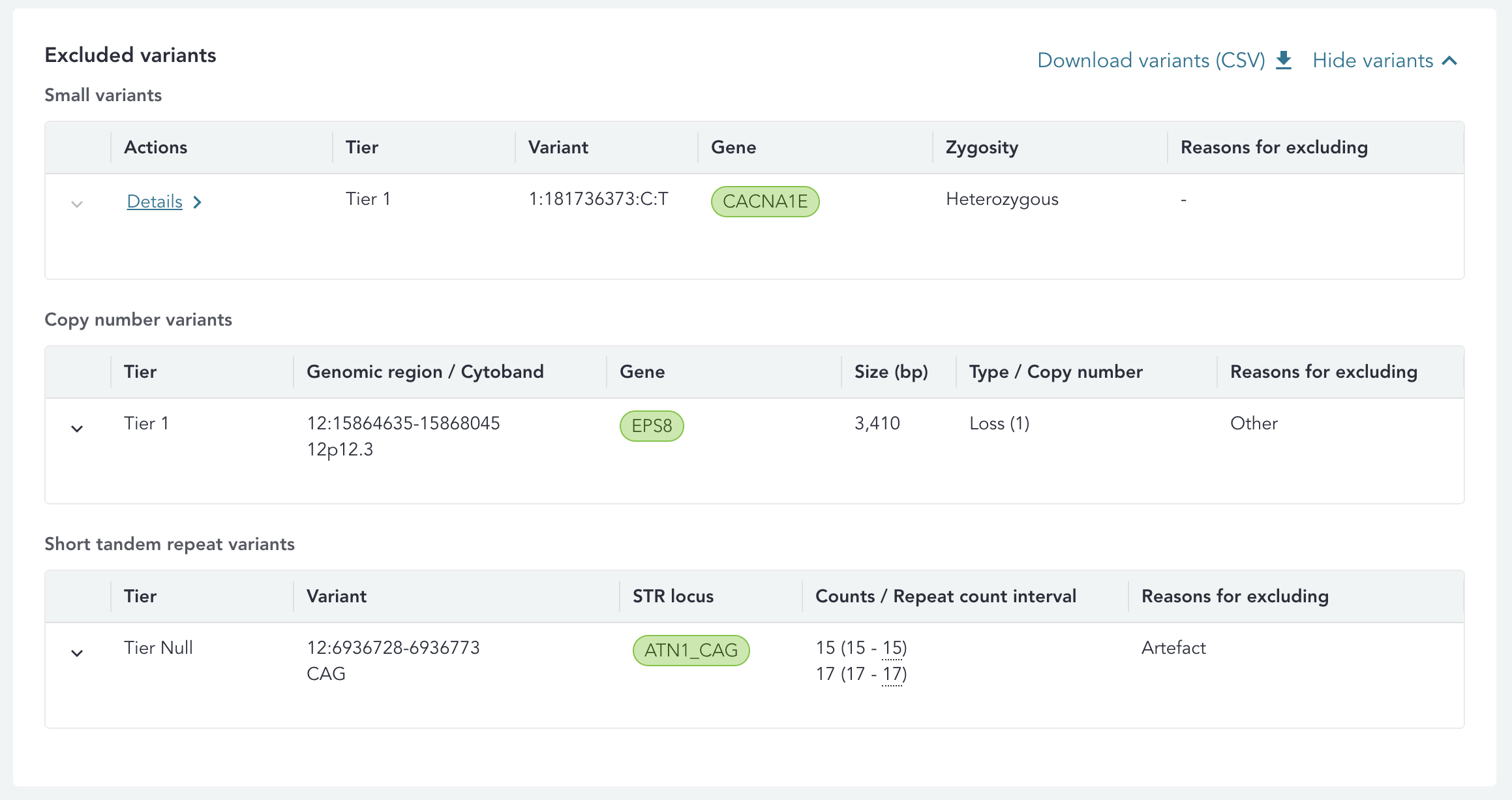
The Excluded variants table contains any variant that has specifically been excluded during classification. Excluded variants are variants that have been determined to not require any further interpretation or classification for a specific reason, such as being an artefact or being too common. Any excluded variants will not be included in the Summary of Findings.
The Excluded variants tables incorporate a subset of columns from the Variants to report tables, and a Reasons for exclusion column which contains any Reasons for exclusion checked by the user on the classification drawer when excluding the variant.
For a full history of exclusion selections, the drop-down can be expanded.
Other reviewed variants
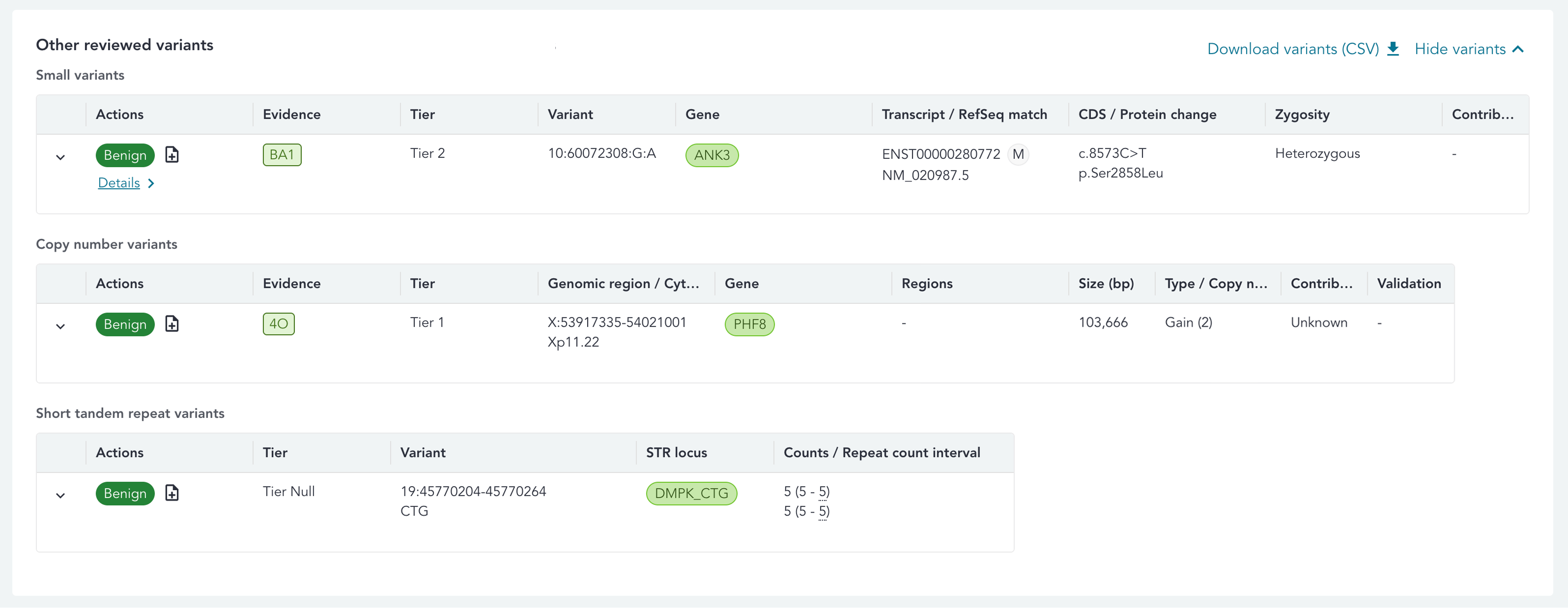
The Other reviewed variants tables contains any variant that has been reviewed (i.e. has had selections made in the classification panel), but has not specifically been marked to add to the report or excluded. The columns in these tables tables correspond to those in the Variants to report tables.
Clicking on the Add to report button in the Actions column moves the variant up into the Variants to report table. N.B. all fields are mandatory for Pathogenic and Likely Pathogenic classifications - if there are missing selections then an error will appear when clicking the Add to report button, and it will not be possible to add the variant to the Variants to report table until those selections have been made using the classification drawer.
Patient information
PID
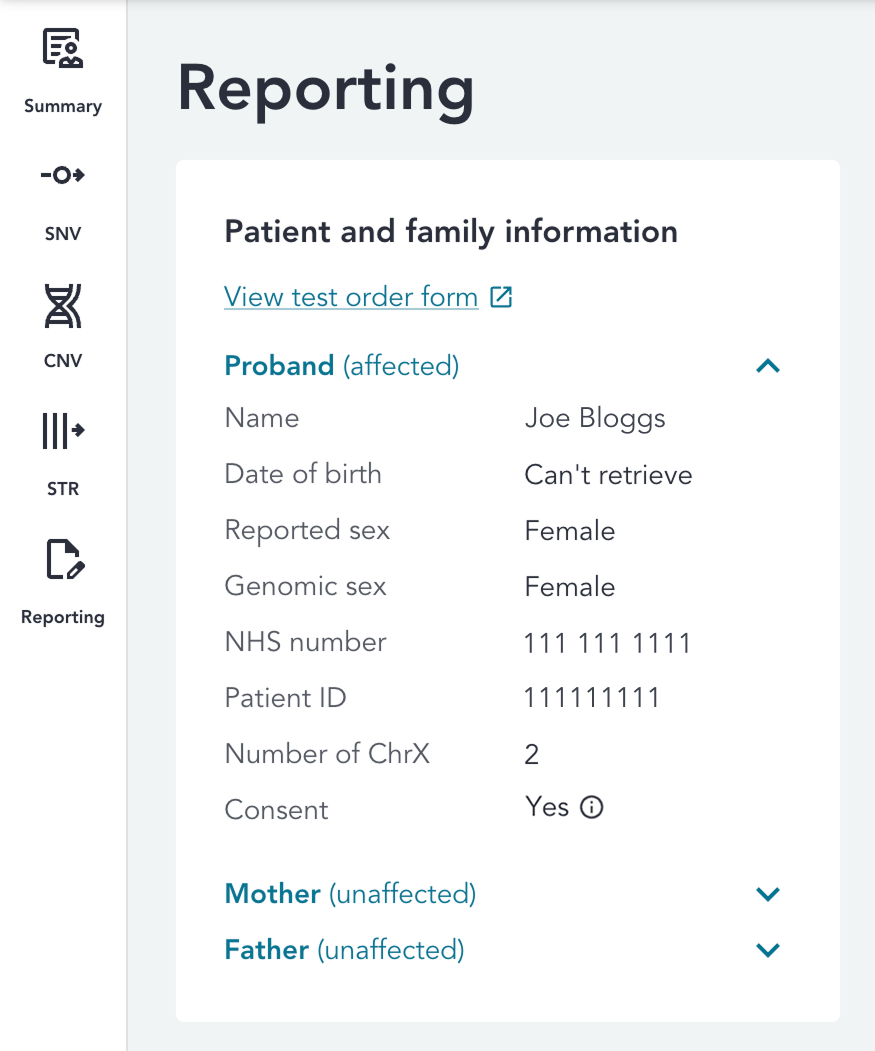
Non-NHS users are only able to view minimal patient information; patient sex, patient ID and Clinical Indication. Patient name, date of birth and NHS number are only visible to NHS users.
As in the case summary, there is an equivalent section in the reporting page displaying patient and family information for the case. See the patient info section in the case summary page for further details.
Clinical information
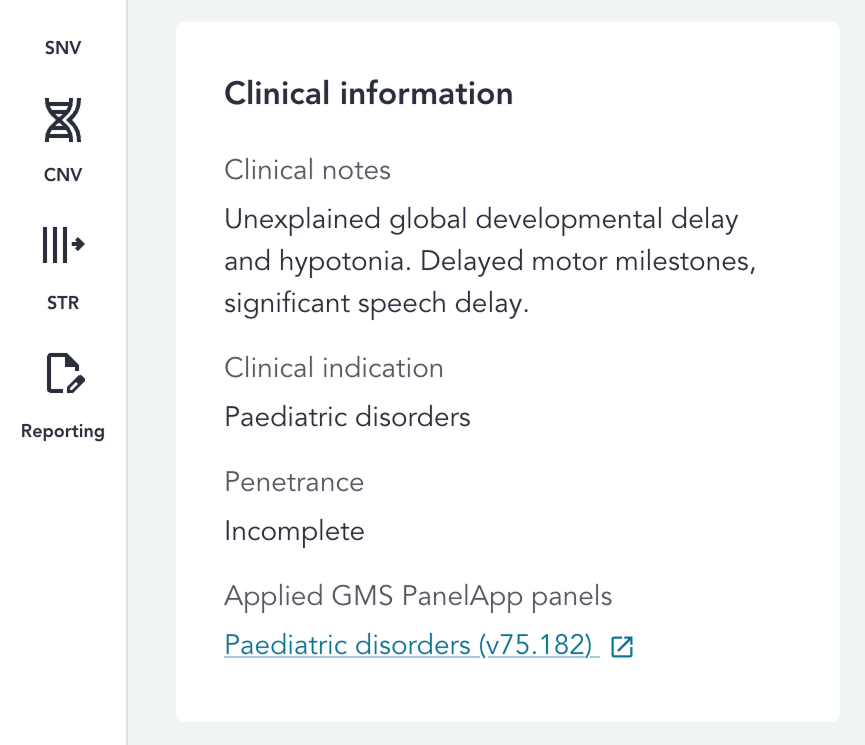
As in the case summary, there is an equivalent section in the reporting page detailing clinical information for the case. See the clinical info section in the case summary page for further details.
HPO terms
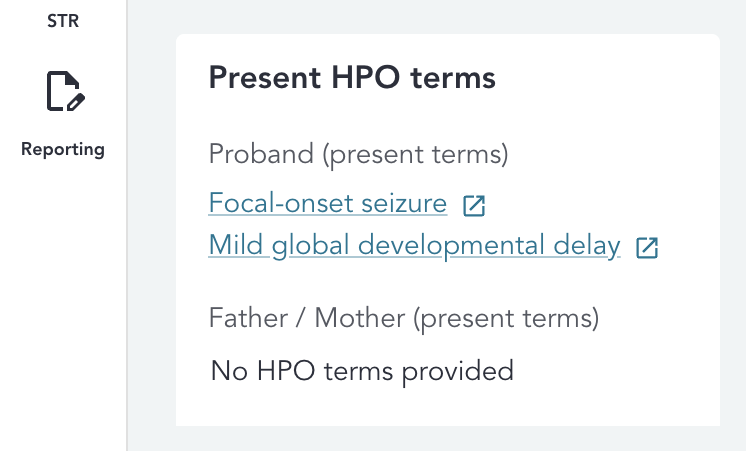
As in the case summary, there is an equivalent section in the reporting page detailing HPO terms for individuals in the case. See the HPO terms section in the case summary page for further details.
Software and dataset versions
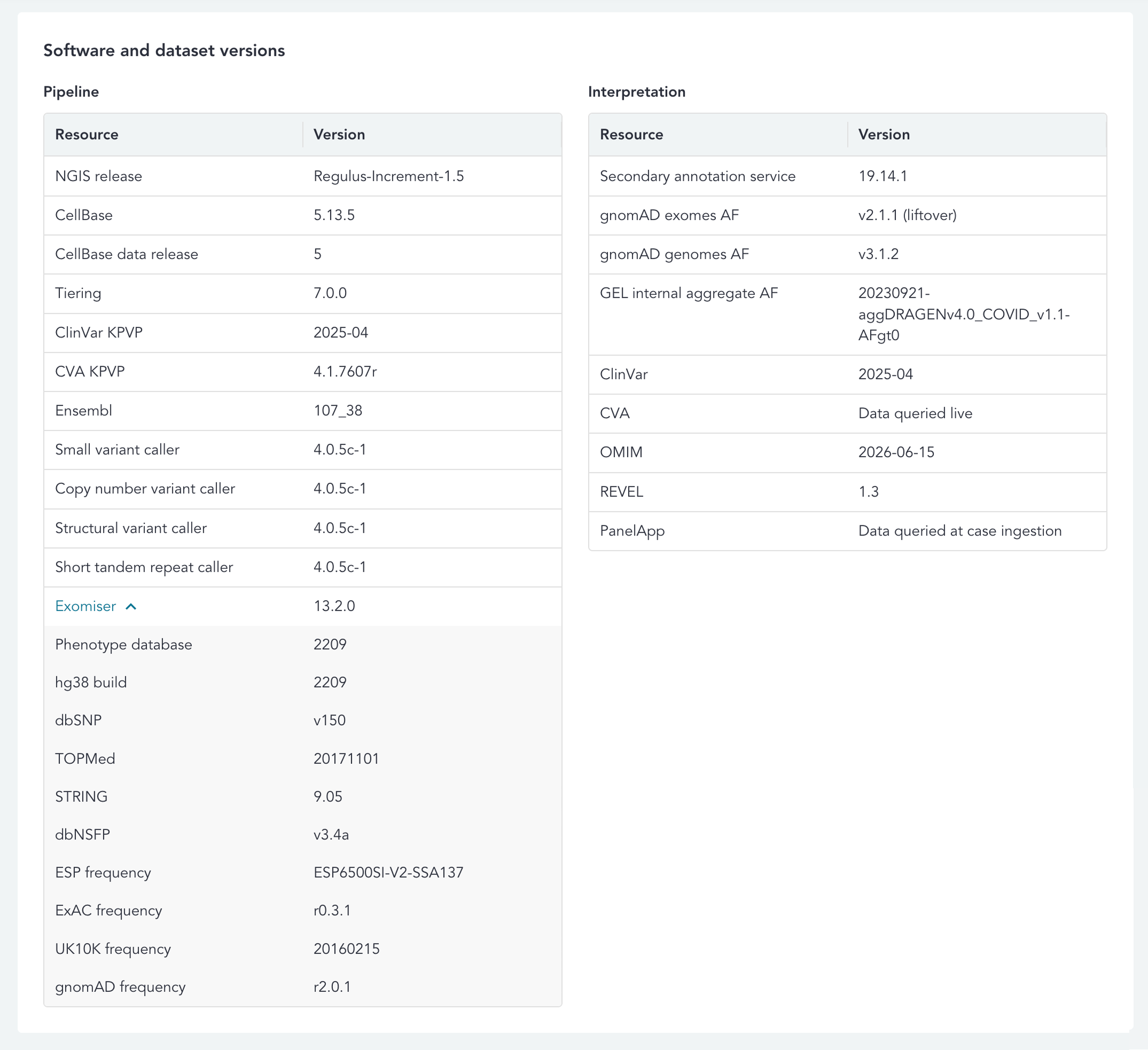
As in the case summary, there is an equivalent section in the reporting page detailing the software and dataset versions used for the case. See the software and dataset section in the case summary page for further details on specific fields.
Download variants
Variants and their selections in the reporting page can be downloaded in CSV format, using the Download all variants (CSV) or the Download variants (CSV) buttons, within the reporting page:
| # | Variants | How to download |
|---|---|---|
| 1 | All variants | All variants (variants to report, excluded variants, reviewed variants) can be downloaded using the Download all variants (CSV) button to the left of the Close case button at the top of the reporting page. |
| 2 | Variants to report | Variants that have been added to the report can be downloaded using the Download variants (CSV) button in the top right of the Variants to report card. |
| 3 | Excluded variants | Excluded variants can be downloaded using the Download variants (CSV) button in the top right of the Excluded variants card. |
| 4 | Other reviewed variants | Other reviewed variants can be downloaded using the Download variants (CSV) button in the top right of the Other reviewed variants card. |
The CSV download also contains all case comments (with username and timestamp), referral ID, and the timestamp for when the file was generated.
Abbreviations
| Abbreviation | Definition |
|---|---|
| ACGS | Association for Clinical Genomic Science |
| ACMG | American College of Medical Genetics and Genomics |
| CDS | Coding DNA Sequence |
| CIP-API | Genomics England Clinical Interpretation API |
| CNV | Copy Number Variant |
| CVA | Clinical Variant Ark |
| EQ | Exit Questionnaire |
| RDDSS | Rare Disease Decision Support System |
| GEL | Genomics England |
| GMS | Genomic Medicine Service |
| GLH | Genomic Laboratory Hub |
| HGVS | Human Genome Variation Society |
| HTML | Hyper Text Markup Language |
| HSCN | Health and Social Care Network (N3) |
| IGV | Integrative Genomics Viewer |
| IB | Interpretation Browser |
| IP | Interpretation Portal |
| NGIS | National Genomics Informatics System |
| PID | Patient Identifiable Data |
| QC | Quality Control |
| SoF | Summary of Findings |
| SO | Sequence Ontology |
| SNV | Single Nucleotide Variant |
| SV | Structural Variant |
| TOMS | Test Order Management System |
| UAT | User Acceptance Testing |
| VCF | Variant Call Format File |
| VILs | Variant Interpretation Logs |
| WGS | Whole Genome Sequencing |